A useful tool that's underutilised in TalentLink is the ability to create multiple Job Ad Templates. These are especially useful if your organisation includes standard text blocks within your adverts whether it be on all jobs or specific to job groups, you can create a template to partially populate the advertisement text boxes.
Where to create/edit
On the left hand menu within TalentLink, if you hover over the "Jobs" icon then select "Job Ad Templates"
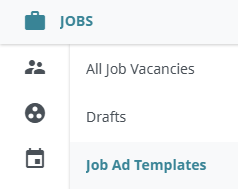
Within this page you will see a list of any of your organisations existing templates:
- To edit an existing template, click on the template name;
- To create a new template, select the button in the top right corner to "New Job Ad Template".
You can also create a copy of an existing template if you wish to make a slightly different version. To do this, open the existing template, make any changes and then choose the option "Save As" this will leave the original alone and save the new version.

Tricks for Headers and Character Counts
When formatting your advert, you are limited to four text boxes with a maximum character count of 4000.
NOTE
The character count includes any formatting at its full HTML value. For example:
- new paragraph "<p></p>" =7
- ampersand "&" =5
- Making text bold "<strong></strong>" =17
If you want to use more than four sections within your advert, you can workaround this by adding an additional header within the text box.
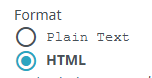
Firstly, you need to be in the correct mode so you can access the source code. Ensure the edit format is in HTML (or Rich text) mode:
Then above each text box within the formatting options you will see <> this opens the source code.
You will be familiar with the section headers in the advert appearing bold and underlined in myjobscotland.
But you can actually split existing blocks with more headers to combine information. As you will see in the templates I have stuck Job Requirements and Additional Information into one box, to do this I just added h2 code at each end of the text:
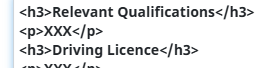
Another trick I have used to reduce the character count is used another header type for some of the sub-headers instead of bold. The code for bold is a lot of characters as its called "strong" so each time you bold text it adds <strong>TEXT</strong> = 17 characters so when I want to bold a sub-header I instead use h3 which is only 9 characters:
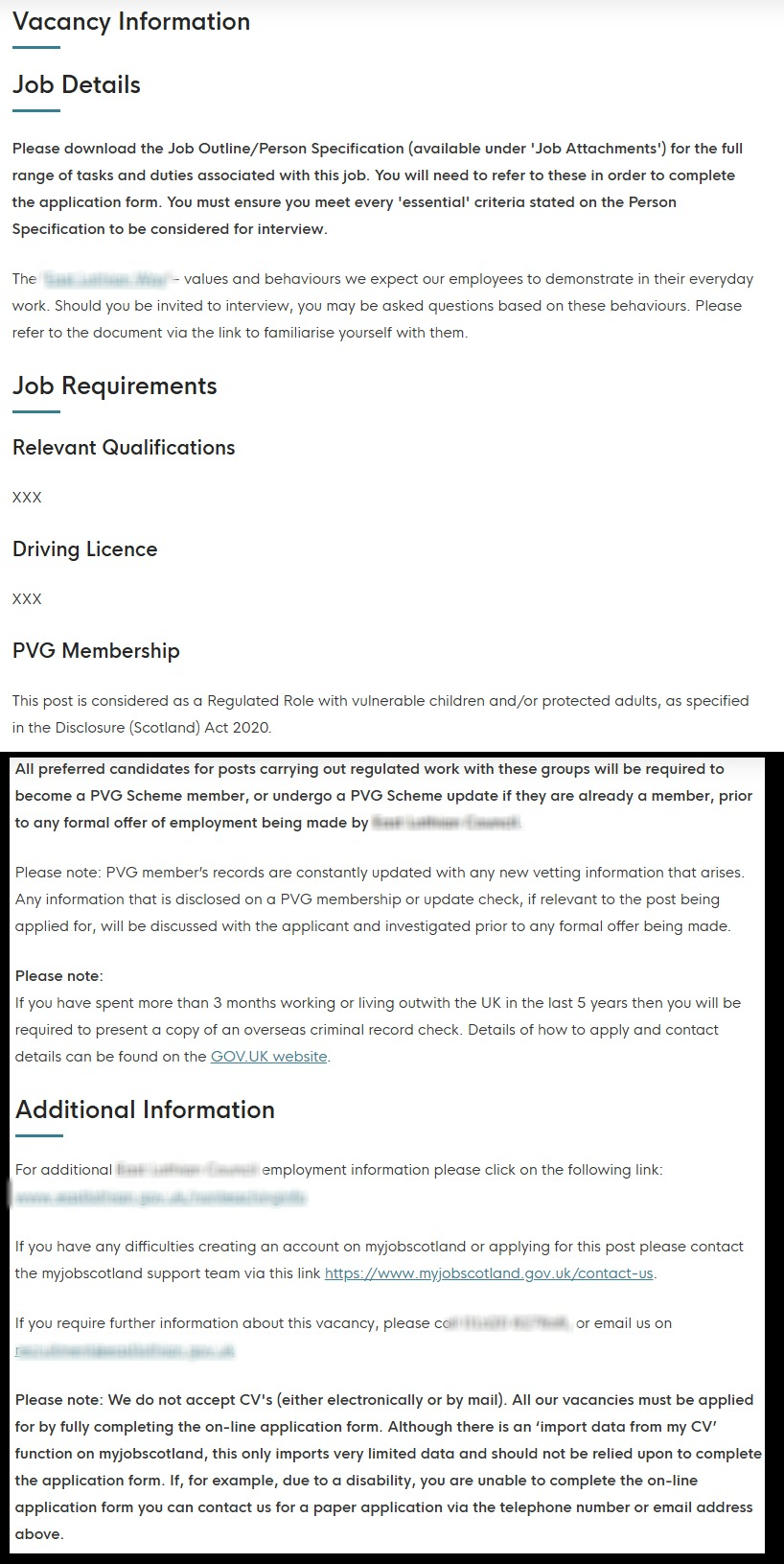
Here is an example from a test job where I have used h2 and h3 to break up the advert text:
How to Apply Templates to your Advert
There are two places you can access them: the job requisition and the job advert.
On the job requisition when you scroll down to Job Description you should see an "import from job or template" button
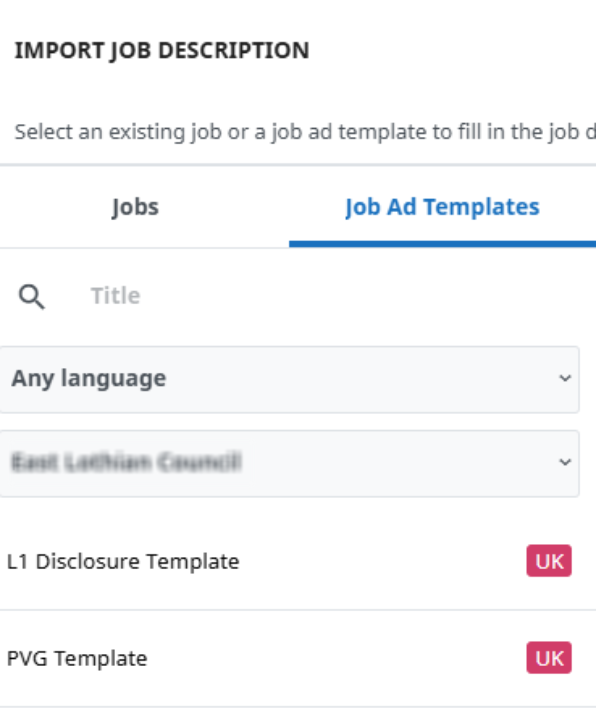
Click "Job Ad Templates", then select the template you want to use:
Then in the top right you will see "Select" which will apply the template
The second place you can import is directly in the job advertisement on the posting tab:
At the top you'll see an "Import" button and then select "from Advert Template" (If you have already finalised the advert in the job requisition then you would import "from Job Description" on the advertisement)
After you import a job ad template, you can then continue to edit the advert to tailor it to the specific job.